

Quick Answer
- Install Fire TV Remote from the App Store.
- Connect your iPhone to the same Wi-Fi as your Firestick.
- Open the app and tap Allow for Local Network access.
- Tap your Fire TV in the list and follow the on-screen prompt.
What You Need
- An iPhone or iPad running iOS or iPadOS 18.6 or later.
- A Fire TV device: any Fire TV Stick (Lite, HD, 4K, 4K Max), a Fire TV Cube, or a smart TV with Fire TV built in.
- Your home Wi-Fi. The phone and the Fire TV talk over your local network, so both must be on the same one. No Bluetooth pairing, IR blaster or cables needed.
If your Fire TV is brand new or has lost its Wi-Fi connection, get it online first. Without a remote, the quickest way is the mobile hotspot trick.
Set Up Your iPhone as a Fire TV Remote
1. Install the App
Download Fire TV Remote from the App Store. In the store it’s listed as “Firestick TV Remote・Fire Stick”. It’s free to download.
2. Put Both Devices on the Same Wi-Fi
On your Fire TV, open Settings › Network to see which network it’s connected to. On your iPhone, open Settings › Wi-Fi and join that same network. A guest network or a separate “IoT” network won’t work, because those usually block devices from seeing each other.
3. Allow Local Network Access
The first time you open the app, iPhone asks whether it can find and connect to devices on your local network. Tap Allow — that’s how the app discovers your Fire TV. If you tapped Don’t Allow by mistake, turn it on in Settings › Privacy & Security › Local Network.
4. Pick Your Fire TV
The app scans your network and lists every Fire TV it finds, usually within a few seconds. Tap the one you want to control and follow the on-screen prompt to finish connecting. Next time, the app reconnects automatically.
5. Start Controlling
You’re done. The main screen works like the physical remote: power, volume and mute at the top, the navigation ring with OK in the middle, then play/pause, rewind, fast-forward, Back, Home and Menu.
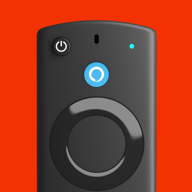
Fire TV Remote for iPhoneTouchpad, voice, keyboard and one-tap apps for every Fire TV in your home.
Get It FreeGet the Most Out of It
- Use the touchpad for long lists. Swipe to move, tap once for OK, double-tap to play or pause. It’s faster than clicking the arrows through a long row of shows.
- Type, don’t hunt. When a search box or sign-in field is on screen, open the keyboard in the app, type on your iPhone and tap Send. It turns a 2-minute password into 10 seconds.
- Say it. Tap the mic and say what you want to watch instead of typing it.
- Jump between apps. Open Netflix, Prime Video, YouTube or Disney+ directly instead of scrolling the Home screen.
- Watch quietly. Turn on private listening to hear the TV through your headphones.
- Control more than one TV. Every Fire TV on your Wi-Fi appears in the device list, so you can switch rooms in a tap.
If the App Can’t Find Your Fire TV
Almost every connection problem comes down to the network. Work through this list in order:
- Check the network name on both devices. The Fire TV (Settings › Network) and the iPhone must show the same Wi-Fi. Dual-band routers are fine as long as it’s the same network.
- Turn off your VPN on the iPhone. A VPN routes traffic away from your local network, so the app can’t see the Fire TV.
- Allow Local Network access in Settings › Privacy & Security › Local Network.
- Avoid guest networks. Guest and “IoT” networks, and routers with AP isolation or client isolation turned on, stop devices from seeing each other. Use your main network or turn isolation off in your router’s settings.
- Wake the Fire TV. Turn on the TV and make sure the Fire TV Home screen is showing.
- Restart both devices. Unplug the Fire TV from power for 30 seconds, plug it back in, and restart your iPhone.
- Update everything. Install the latest Fire TV software (Settings › My Fire TV › About › Check for Updates), the latest iOS and the latest version of the app.
Still stuck? Email support@firetvremote.app with your Fire TV model and iPhone model, and we’ll help you get connected.
FAQ
Can I use my iPhone as a Firestick remote?
Yes. Install a Fire TV remote app such as Fire TV Remote, connect your iPhone to the same Wi-Fi network as the Firestick, and select the Firestick in the app. You can then navigate, play, pause, type and open apps from your iPhone.
Do I need the physical remote to set up the iPhone app?
Not if your Firestick is already connected to Wi-Fi. If it isn’t on your network yet, you need to get it online first, for example with the mobile hotspot method.
Does the iPhone remote work on Fire TV smart TVs?
Yes. Smart TVs with Fire TV built in, such as Amazon Fire TV Omni, 4-Series and 2-Series, Insignia and Toshiba Fire TV models, work the same way as a Fire TV Stick.
Why does the app need Local Network access?
iPhone asks for permission before an app can find devices on your home network. Without Local Network access the app can’t see your Fire TV, so tap Allow, or turn it on later in Settings › Privacy & Security › Local Network.