
Full Remote Layout
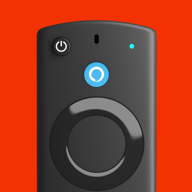
Power, volume, mute, Home, Back, Menu, the navigation ring with OK, and play, pause, rewind and fast-forward — right where you expect them.
Free for iPhone & iPad · Fire TV Stick, Cube & Fire TV smart TVs
Lost the remote again? Control your Fire TV Stick, Fire TV Cube or Fire TV smart TV from your iPhone over Wi-Fi. Swipe on the touchpad, type with your keyboard, speak a command, or jump to Netflix and YouTube in one tap.


On a Computer?Scan with your iPhone camera to download.
Free downloadiOS 18.6 or laterSearch “Firestick TV Remote” on the App Store
Interactive demo: press the buttons on the phone to control the TV screen.
TV RemoteLiving Room
A preview of the app’s main screen. Tap the buttons or use your arrow keys and Enter.
Works with
Everything you need to know before you download — in 30 seconds.
Every button from the original remote in a familiar layout, plus the shortcuts you always wished it had.
Power, volume, mute, Home, Back, Menu, the navigation ring with OK, and play, pause, rewind and fast-forward — right where you expect them.
Glide through menus with your thumb instead of clicking. Tap once to select, double-tap to play or pause.
Tap the mic and say what you want to watch. Find shows and movies without spelling them out on the TV.
Type searches, emails and passwords on your iPhone instead of hunting for letters on the on-screen grid.
Launch and switch between Netflix, Prime Video, YouTube, Disney+ and your other apps without scrolling the Home screen.
Hear your Fire TV through headphones. Watch late at night without waking up the whole house.
Open the app and it finds every Fire TV on your Wi-Fi. Pick yours — no IR blaster, no cables, nothing to plug in. Switch between the living-room Stick and the bedroom TV in one tap.
The remote is only the start. These are the screens people use the most.


No cables, no extra hardware. If your Fire TV is on Wi-Fi, you’re ready.
Connect your iPhone to the same Wi-Fi network as your Fire TV Stick, Cube or Fire TV smart TV.
Allow Local Network access when iPhone asks. The app scans your network and lists every Fire TV it finds.
Pick your device and follow the on-screen prompt to connect. That’s it — start watching.
Fire TV not showing up? Make sure both devices are on the same network (not a guest network), turn off any VPN, and check Settings › Privacy & Security › Local Network on your iPhone. The full checklist is in How to Use Your iPhone as a Firestick Remote.

In the couch, under the dog, in a backpack. Your iPhone is already in your hand. More ways to control a Firestick without a remote.
No AAAs in the drawer? Keep watching from your phone. Fix a remote that stopped working.
Long passwords, email codes, show titles: type them on your iPhone in seconds instead of picking letters one by one.
Everyone else asleep? Turn on private listening and hear every word through your headphones.
Keep both. Here’s where each one shines.
| Task | Fire TV Remote App | Physical Fire TV Remote |
|---|---|---|
| Typing searches & passwords | iPhone keyboard or voice | On-screen letter grid or the Alexa button |
| Moving through menus | Buttons or a swipe touchpad | Navigation ring |
| Opening apps | One tap from your app list | A few preset app buttons |
| Several Fire TVs at home | Switch devices in the app | One remote per device |
| Batteries | Uses your iPhone | 2 × AAA |
| Getting lost | Rarely — it’s your phone | All the time |
| Works without Wi-Fi | No — needs your home network | Yes (Bluetooth) |
Fire TV Remote talks to your device over your home network, so it works the same way on streaming sticks and TVs with Fire TV built in.
Sticks and boxes plugged into any TV’s HDMI port:
TVs that run Fire TV out of the box:
Your iPhone or iPad and your Fire TV need to be on the same Wi-Fi network. Requires iOS or iPadOS 18.6 or later.
Yes, Fire TV Remote is free to download on the App Store. Some features need an optional subscription, which you can cancel anytime in your Apple Account settings.
Connect your iPhone to the same Wi-Fi as your Fire TV, open Fire TV Remote, allow Local Network access and tap your Fire TV in the list. The app finds Fire TV devices automatically.
Read the step-by-step guide: How to Use Your iPhone as a Firestick Remote.
Yes. As long as your Fire TV Stick is connected to Wi-Fi, Fire TV Remote on your iPhone lets you navigate, select, play, pause, type and open apps without the physical remote.
Other options, such as HDMI-CEC and Alexa, are covered in How to Control a Firestick Without a Remote.
No. The app talks to your Fire TV over your local Wi-Fi network, so your iPhone and your Fire TV must be on the same network. If your Fire TV lost its Wi-Fi connection, use the mobile hotspot method to get it back online.
Fire TV Remote works with Amazon Fire TV streaming devices, including Fire TV Stick, Fire TV Stick Lite, Fire TV Stick 4K, Fire TV Stick 4K Max and Fire TV Cube, and with smart TVs that have Fire TV built in, such as Amazon Fire TV Omni, 4-Series and 2-Series, Insignia, Toshiba and Pioneer Fire TV models.
Usually your iPhone and your Fire TV are on different networks (for example, a guest network, or a VPN is on), or Local Network access is turned off for the app. Put both on the same Wi-Fi, turn off the VPN, allow Local Network access in Settings › Privacy & Security › Local Network and restart the Fire TV.
More fixes: If the app can’t find your Fire TV.
Yes. Open the keyboard in Fire TV Remote whenever a search box or sign-in field is on screen, type on your iPhone and tap Send. You can also search by voice.
Yes. Fire TV Remote has volume up, volume down and mute buttons. On Fire TV smart TVs they control the TV directly. With a Fire TV Stick or Cube, volume control depends on your TV and its HDMI-CEC settings.
Yes. Fire TV Remote runs on iPhone and iPad with iOS or iPadOS 18.6 or later.
Yes. The app lists every Fire TV on your Wi-Fi, so you can switch between, for example, the Fire TV Stick in the living room and the Fire TV smart TV in the bedroom.
No. Fire TV Remote is an independent app and is not affiliated with, endorsed by or sponsored by Amazon.com, Inc. or its affiliates.
Download Fire TV Remote for free and control every Fire TV in your home from your iPhone in under a minute.
Scan with Your iPhone